Reviewing and Removing Files
The Importance of Reviewing Files
Regularly reviewing your files helps keep the site clean, accurate, and free of outdated documents.
Before any file can be removed from the system, several checks must be completed to ensure that the file is not actively used or linked on the website. Standard users cannot delete files themselves, so these steps help prevent broken links and accidental content loss while preparing the Web Team to safely complete the removal.
1. Check for Page Relationships
Use the file's Relationships menu option to verify whether any pages, blocks, or other assets depend on this file. If relationships are present, the file cannot be removed until those references are updated or removed. To check for page relationships, follow these steps:
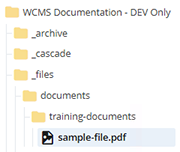
- Click into the file in Cascade.
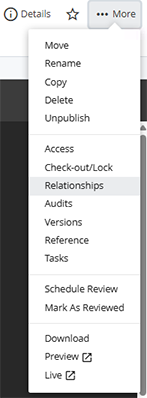
- Click the More ellipsis button in the upper-right corner of the page and select Relationships from the menu.
- If any page relationships exist, they will appear in a list.
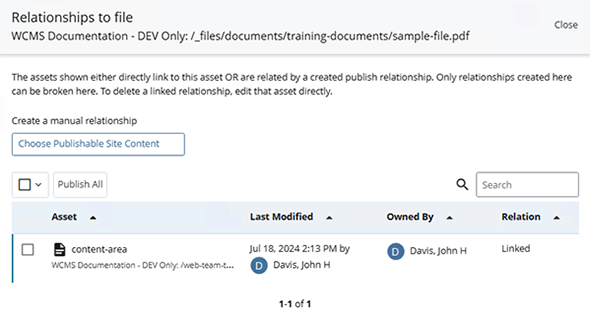
- If no relationships are found, a message stating "There are no relationships available" will be displayed.

2. Search for Hard‑Coded Links
Search in Cascade for the file name to ensure it is not hard‑coded anywhere as an external URL. This step applies to documents only (PDF, DOCX, etc.), not images. If any hard‑coded links are found, update the pages to remove or replace them before proceeding. Follow these steps to search for any hard-coded links:
- Click into the file in Cascade.

- Click the More ellipsis button in the upper-right corner and look for the "Live" menu option at the bottom.
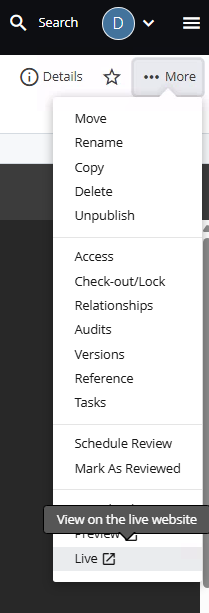
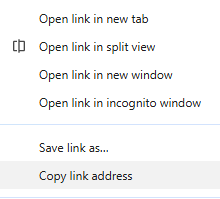
- Right-click the "Live" menu option and select "Copy link address".
- Click the search icon in the top menu bar.

- Paste the file link address into the search box and press Enter on the keyboard.

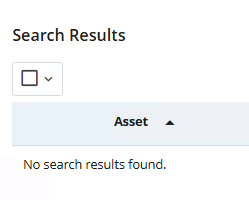
- If the hard-coded file link is not found, the search results will read "No search results found."
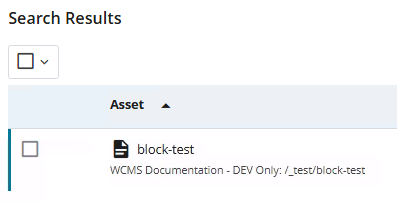
- If the hard-coded file link is found, it will be listed on the results page.
3. Compile and Submit a Removal Report
After confirming that the file is no longer referenced, compile your findings—including any relationships, search results, and the file path—and send the report to the Web Team. Since standard users do not have deletion permissions, the Web Team will review the information and complete the file removal on your behalf. Documents sometimes are linked to a policy page; the Web and UComm teams will be able to review this before deleting the file.