Application Instructions
Undergraduate students
International Undergraduate Step-by-Step Instructions
Please keep this document open or print it so you can follow along while you complete your online application. If you have questions after you review the instructions or while you are filling out the application, please email: World2SCSU@stcloudstate.edu
Click here to visit the online application website.
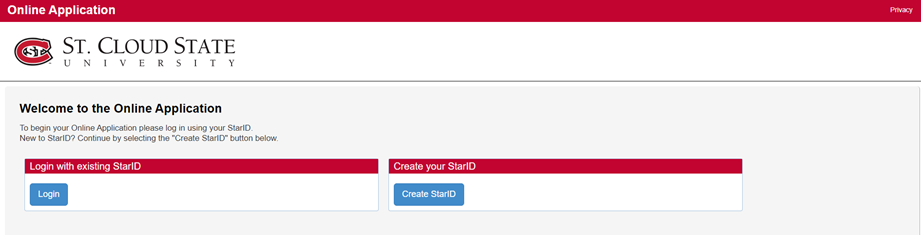
Once the online application loads, click on the "Create StarID" button.
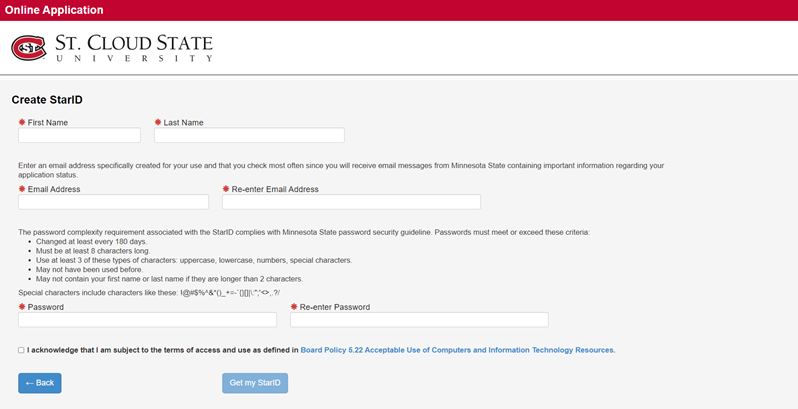
Enter your first and last name, your email address, and re-enter your email address.
- Create a password that you will remember and re-enter the password.
- Check the checkbox indicating that you acknowledge.
- Click "Get my StarID" (please make sure you write down or print the StarID information and remember your password as you will need it in the future).
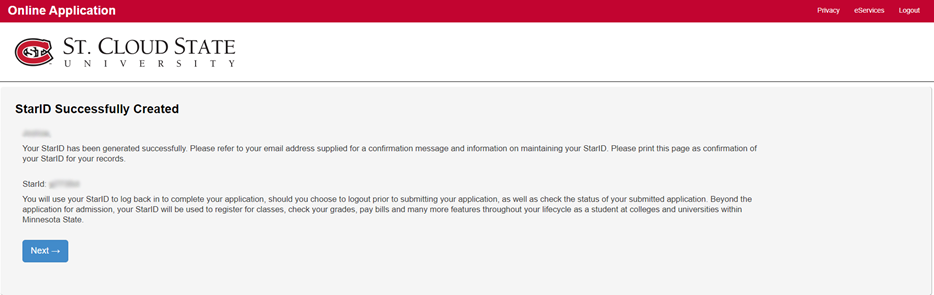
- Please check your email for a confirmation message.
- Click "Next".
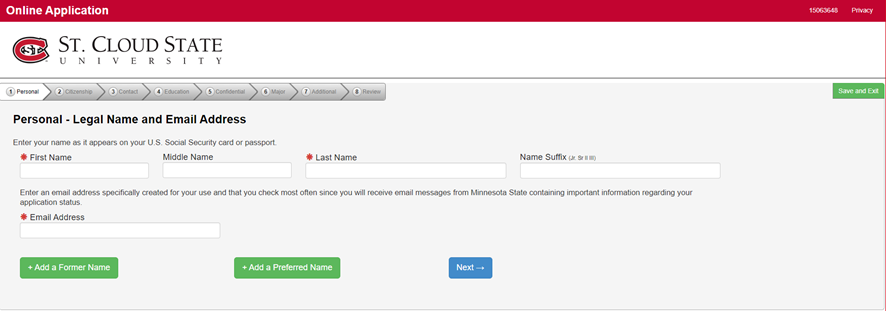
Fill out your name exactly as it appears on your passport.
Please provide an accurate, working email address that you check regularly. We will use this email for all communications with you.
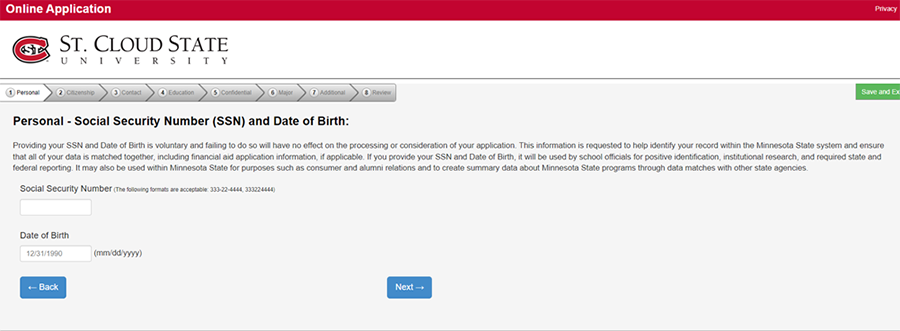
You are not required to enter a social security number & do not use the examples listed.
You most likely will not have one and can leave this field blank.
Remember to fill in your Date of Birth with month first, the day second and year third.
Click "Next".
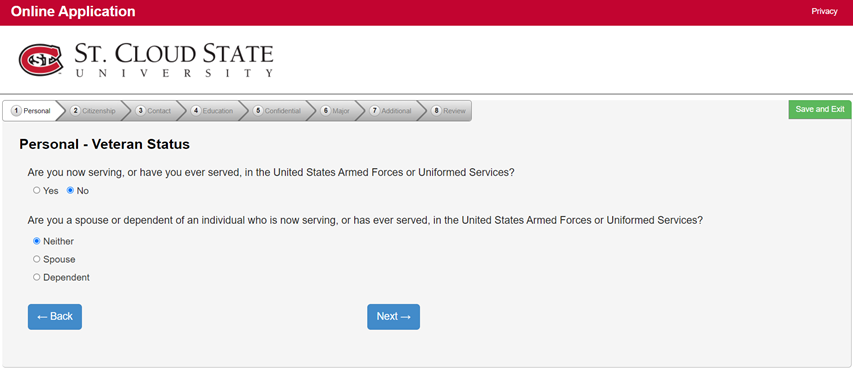
Click "Yes" if you have served in the United States armed forces.
Click "No" if you have never served in the United States armed forces.
Click "Neither" if you or your spouse have never served in the United States armed forces.
Click on "Spouse" if he/she has served in the United States armed forces.
Click "Dependent" if they are serving or have served in the United States armed forces.
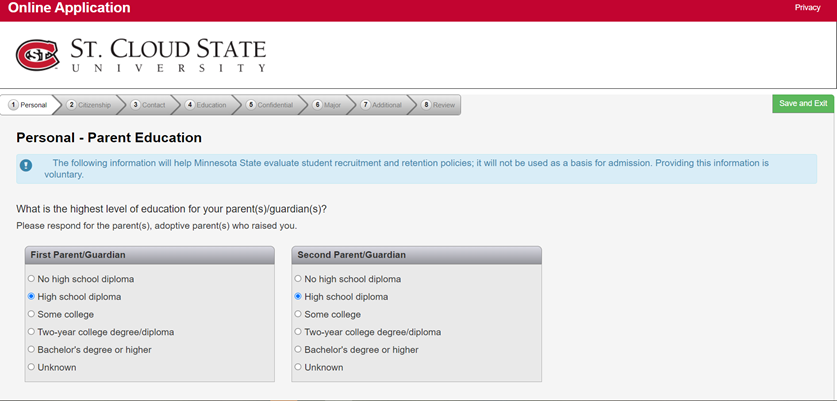
Answer these questions to the best of your knowledge. You may leave them blank if you do not know.
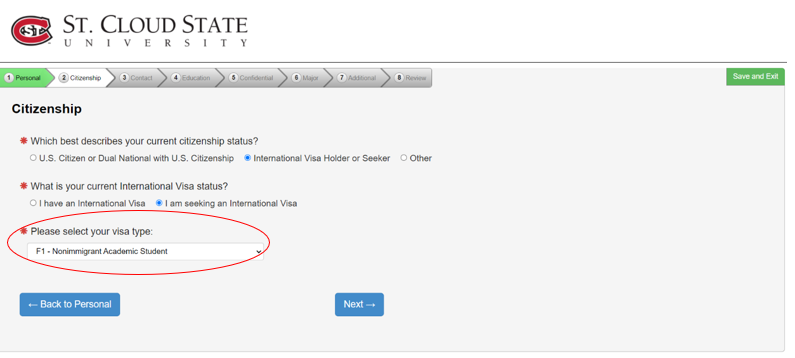
- Choose “I have an International Visa” if you already have an F1 visa and are in the US.
- Choose “I am seeking an F1 international visa” if you don’t have a visa or if you have another type of non-immigrant visa.
- Under type of visa, only choose “F1 - Nonimmigrant Academic Student”.
- Choose whether you are in or out of the US, select country of citizenship, country of birth, check that your date of birth is correct and continue to the next step.
- If you do not find the above stated option reading, "International Visa Holder or Seeker", and are instead presented with the option of "other", you are completing the WRONG application. Do not proceed, as you are likely in our domestic application portal and your application will be delayed.
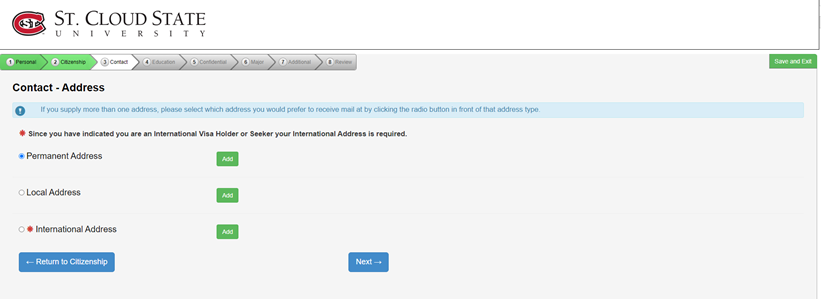
- If you are out of the US, you are required to submit an international address (click “Add” to do so).
- If you are in the US, you need an international address. Click “Add” to add a local address (address lines are 30 characters; use the address 2-5 lines for longer addresses).
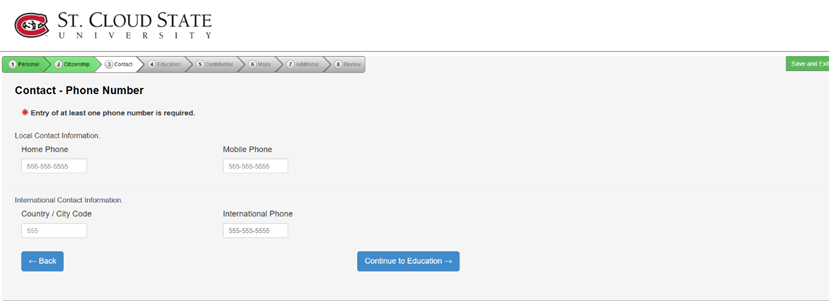
Contact - Phone Number
- Enter at least one phone number in this section.
- For international phone numbers, do not enter a "+" before your phone number.
Continue to the next step.
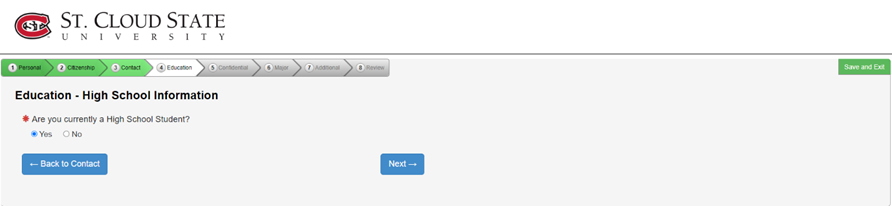
Select if you are currently in High School (secondary school).
Click "Next".
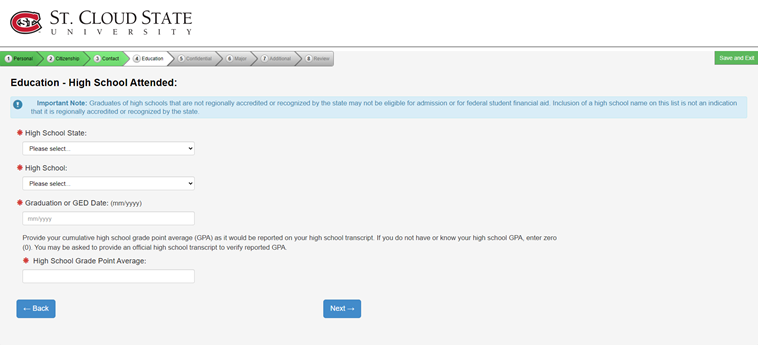
- If you have finished High School (secondary school) or the equivalent in your country, select “Yes”.
- Choose “Non-US” for "High School State" field.
- Choose “Other-international” for the "High School" field.
- Enter High School (secondary school) name and date of graduation.
- If you are currently in High School (secondary school) indicate your end date or graduation date.
Click "Next".
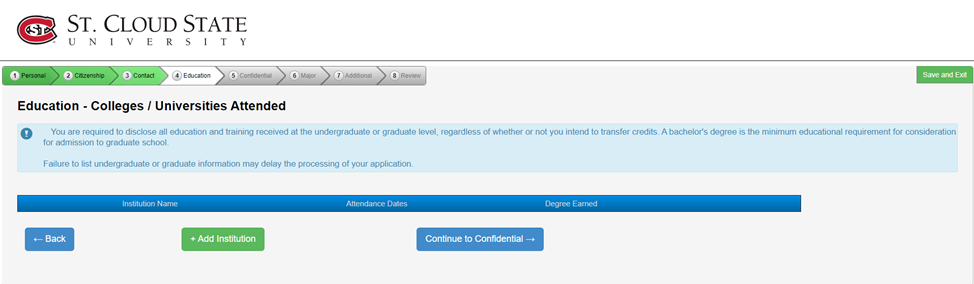
If you attended a college or university (whether inside the US or outside the US), you must indicate that you have done so.
- Click “Add Institution.” Select “Non-US” if the school is outside the US.
- List the name of the school or schools that you attended. Failure to list all education after high school may result in disciplinary action, denial of the admission decision, or withdrawal of admission at a later date.
- Enter the start & end date of your institution listed.
- If you attended a college or university and have not earned a degree, select “Not Applicable”.
- At “degree earned”, if you are still enrolled in the college/university, enter the end date as the last date you plan to attend the current college/university before enrolling in SCSU.
Click "Next".
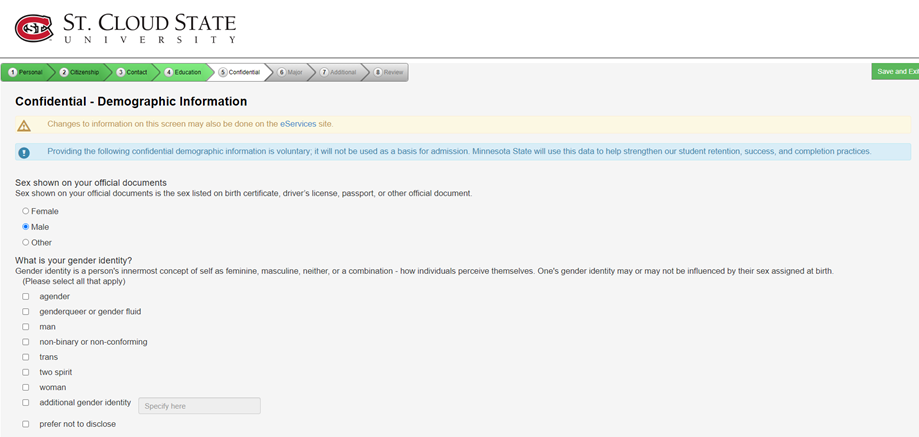
- Answer the questions to the best of your ability.
- This section is voluntary and you are not required to answer any or all of the questions.
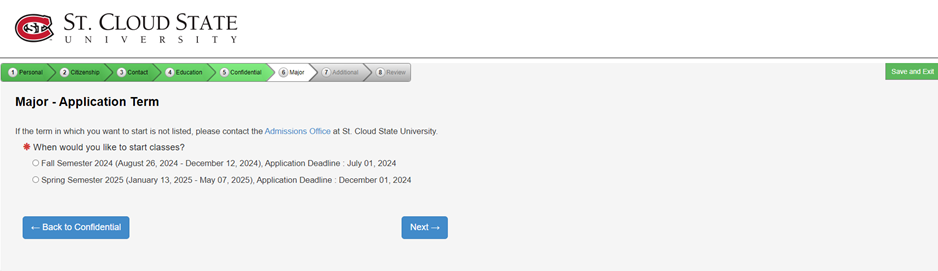
Select the term in which you plan to start classes.
Click "Next".
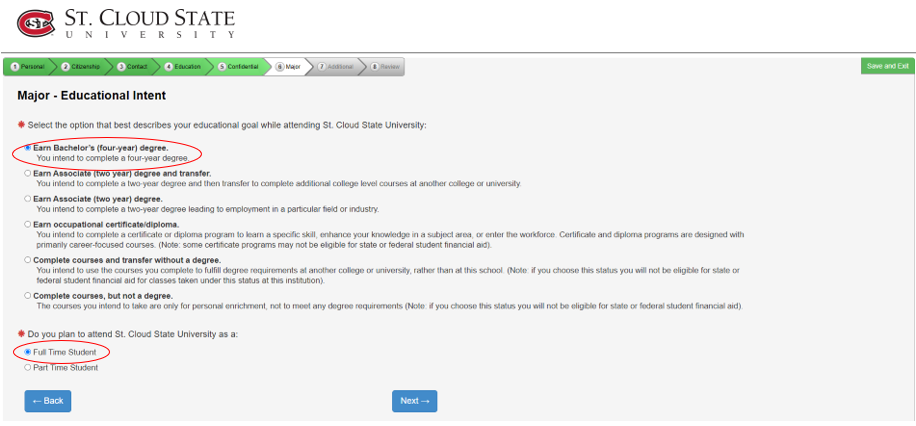
- Select “Earn Bachelor’s (four year) degree” (for most applicants).
- Certificate/diploma programs are not offered to international applicants without a degree program.
- Indicate “Full-Time Student” as all F1 visa holders must be full-time.
Click "Next".
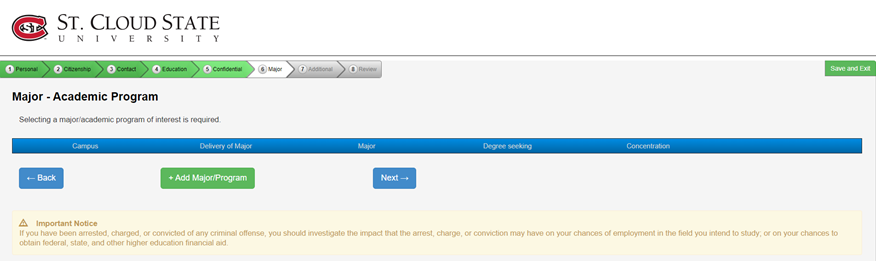
Click "Add/Major Program" to choose a major.
Click "Next".
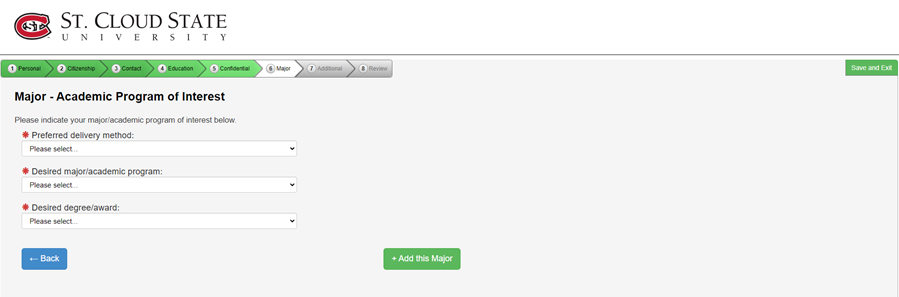
- PLEASE NOTE: The major that you selected on your application for admission is the major listed on your I-20. If you selected two majors, your I-20 will list both majors. Minors do not appear on I-20s.
- Preferred Delivery Method: Select "on campus"
- Add major: Select preferred major
- Desired/ Degree award: Select from drop down
- Click "+ Add This Major".
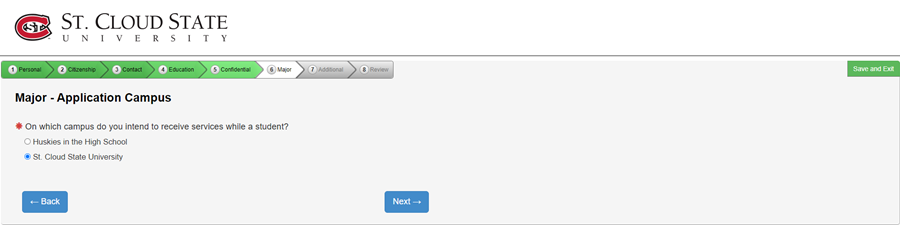
- Application Campus: Select St. Cloud State University.
Click "Next".
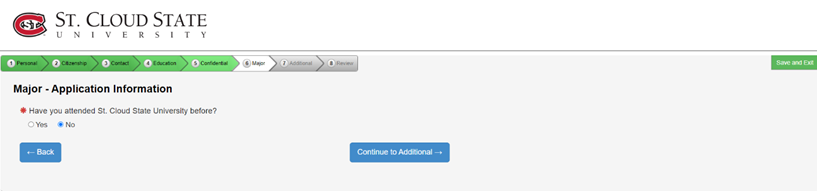
- Select "No" if you have never attended St. Cloud State University.
- Select "Yes" if you have attended St. Cloud State University in the past.
Continue to the next step.
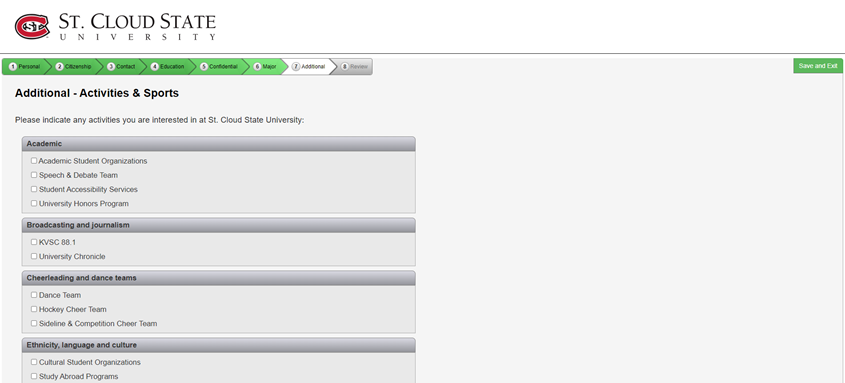
Indicate activities that you are interested in at St. Cloud State University.
Click "Next".
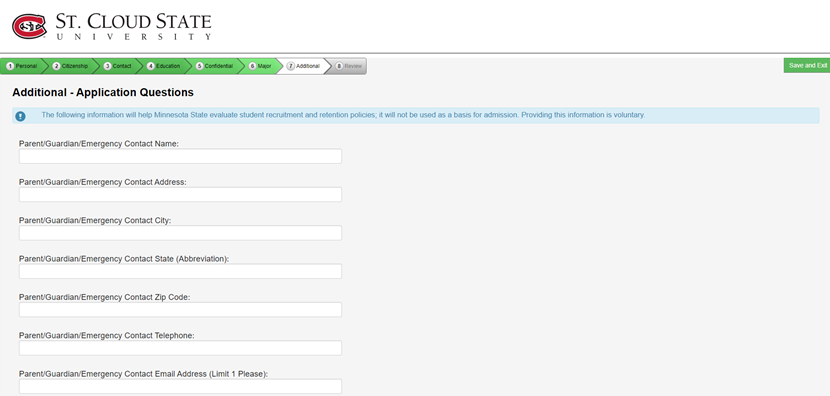
Fill out parent/guardian emergency contact information.
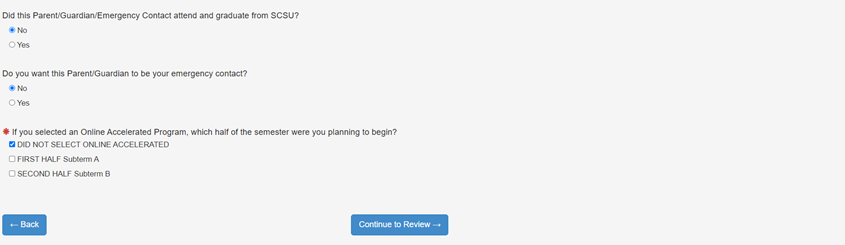
Select "Did Not Select Online Accelerated Program".
Click "Continue" to review.
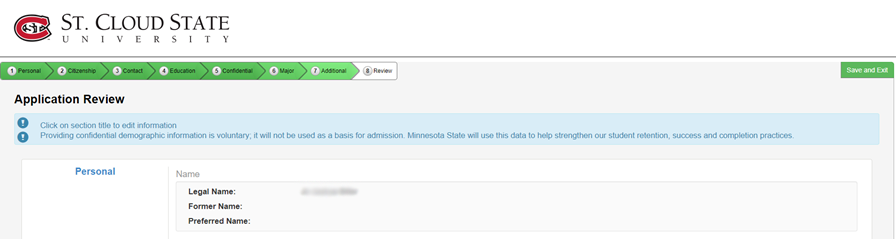
Scroll through and review your application.
Make sure all the information that you entered is accurate.
Click "Continue" to submit your application.
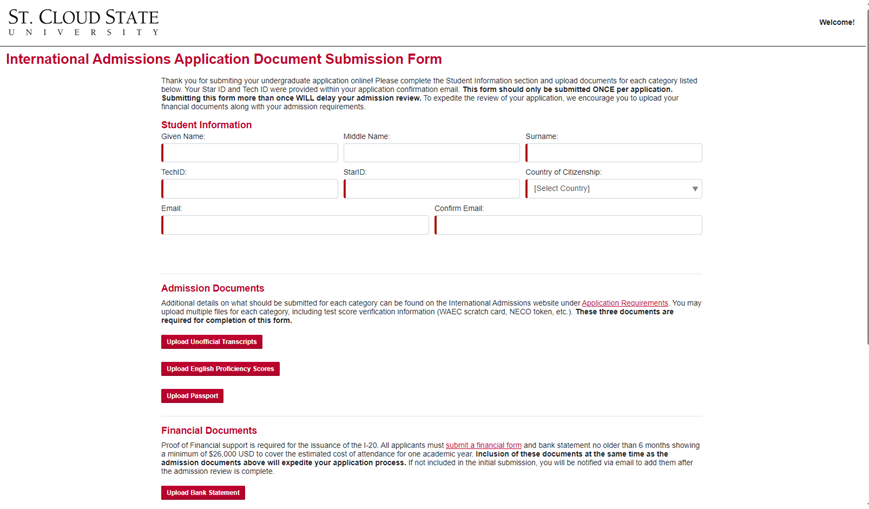
After submitting your application, a link will be sent to your email address to submit your documents in this form.
Your application process is now finished.